12.2.4 The "Properties…" Dialog
The "Relationships" Tab
The "Relationships" Tab
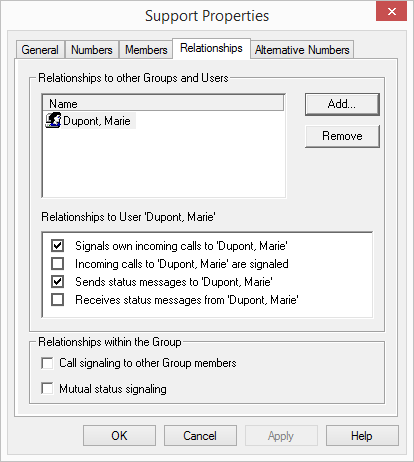
Relationships help you define whether calls for a user or that user's current status are signaled to other users or groups, even across servers. Call signalling will be shown in clients and SwyxPhones. The status, which includes "Logged off", "Available" and "Speaking", is indicated with the help of the Speed Dials and in the Phonebook. For more information on visual or acoustic signaling, see https ://help.enreach.com/cpe/latest.version/Client/Swyx/en-US/index.html#context/help/status_signaling_$
and https ://help.enreach.com/cpe/latest.version/Client/Swyx/en-US/index.html#context/help/call_signaling_$.
Relationships to other groups and users
Here you can define relationships to other users or groups. The page contains the respective call or status signals of the group members to the user or group selected above. If you have used a SwyxLink trunk to configure a cross-server connection to another SwyxServer, then you likewise specify here the recipient on the linked site to whom the selected user signals the status.
Relationships within the group
Here you define the call and status signalling within the group.
A user can only call another user per intercom connection or use the SwyxIt! Messenger if he or she is signaled the status of the other user.
If a user is a member of a group, the relationships defined within the group will also apply to this user. The group will not be shown in the relationships list if you define additional relationships in the properties dialog for this user. For the purpose of clarity, relationships to groups should only be entered via this user dialog if the user is not a member of this group.
Please note that call and status signaling always relates to users or users as group members and not to groups as such. This means, for example, that a group without members cannot signal any calls to other users or groups.
The following relationships can be configured for a User/Group A:
 "Signaled calls to <User/Group B>"
When this setting is made, calls which are for User A or a member of Group A will also be signaled to User B or all members of Group B. Users to whom a call is displayed in this manner then have the option of picking up the call.
"Incoming calls for <User/Group B> are signaled"If this setting is activated, all calls directed to User B or members of Group B will be signaled to User A or all members of Group A.
"Sends status messages to <User/Group B>"When this setting is activated, User A or all members of Group A inform(s) User B or all members of Group B about their status. This allows User B / all members of Group B to contact User A / all members of Group A by Intercom.
"Receives status message from User/Group B"With this setting User A / all members of Group A receive(s) the status messages of User B / all members of Group B. This allows User A / all members of Group A to contact User B / all members of Group B by Intercom.
When dealing with groups, the following settings will define the relationships within the group:
"Call signaling to other group members"Incoming calls for one member of a group will also be signaled to all other group members. This gives the other members the opportunity to pick up the call.
"Mutual status signaling"All members of the group signal their status (Logged off, Available, Speaking) to the other members. This allows all members of the Group to contact each other directly.
It is easiest to explain the use of the group functionality using a practical example:
Five employees work in the Support department of a company (e. g. in London). These employees are designated Swyx users and are all assigned to the Swyx group "Support." The Support employees have the numbers 101-105. The Support group has been assigned the number 100.
It is now possible to cover various functionalities:
Calls to the group number 100 are to be signaled to all Support employees.All calls to the group number will also be delivered to the individual Support employees, because the Support employees have been assigned to the Support group. The calls are distributed according to the Support group's Hunt Group type (parallel, sequential, rotary or random). This allows any Support employee to pick up incoming calls for the group number 100.
Calls for Support employee A are also to be displayed to the other Support employees so that they can pick up the calls if employee A is absent.In order to configure for this, you must activate "Call signaling to other group members" within the relationships of the group.
If all Support employees should receive information on the status of the other employees, "Mutual status signaling" must be activated in the group configuration. This configuration makes sense if you would like to know immediately whether you can forward the call from a customer with specific questions directly to the appropriate expert, or whether this expert is absent or already on the telephone with another customer.The department manager of the Support group is to receive all of the employees’ status and call signaling, while he himself does not want to signal his calls or his status to the employees for confidentiality reasons.For this configuration, activate call and status signaling within the Support group. Do not add the Support department manager to the Support group, as otherwise the department manager’s calls and status messages will be signaled to the group. However, in order for the department manager to receive the signaling for the Support employees, you must explicitly add the department manager to the relationships configuration of the group and activate the relationships "Signals incoming calls to ‘Department Manager’" and "Sends status messages to ‘Department Manager’". You can also create this configuration for the user Department Manager on the "Relationships" tab by adding the group there and activating the appropriate relationships.
How to configure relationships for groups
Please note that deactivating a signaling option will not cancel any other settings! This means, based on the above example, if you add the Support department manager to the Support Group, which signals calls and status messages within the group, and if you also enter a relationship between the department manager and the Support Group, in which you deactivate signaling to the group, the group will still be signaled the calls and the status messages of the department manager.