7.1 Login to Swyx Administration
For instructions on installing Swyx Administration, see 5.5 Installing Swyx Administration. You can also install Swyx Administration on other computers on the network to manage Swyx remotely; see 5.7 Separated Services.
When saving and processing personal data, observe the respective applicable legal data protection regulations.
Personal data cannot be deleted automatically. In order to meet the valid data protection regulations, it may be necessary to delete the entries manually.
Please note that you also need the appropriate permissions to administer Swyx. See 9.3 Administration profiles.
To log in to Swyx Administration
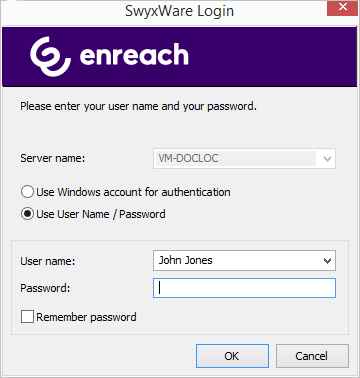
 Signing in with a Windows account (Not available in Swyx for Data Center and SwyxON)Login with User Name / PasswordLogin with authentication token (only in SwyxON)