12.1 Meeting Invitations
You can go directly to your meeting room via your contact profile or copy the link to your meeting room to the clipboard, e.g. to send it in a direct message or chat room.
To get to your Enreach Meetings room
 Your meeting room opens.
or
1 Click on  .
.
.Your contact list opens.Your profile opens.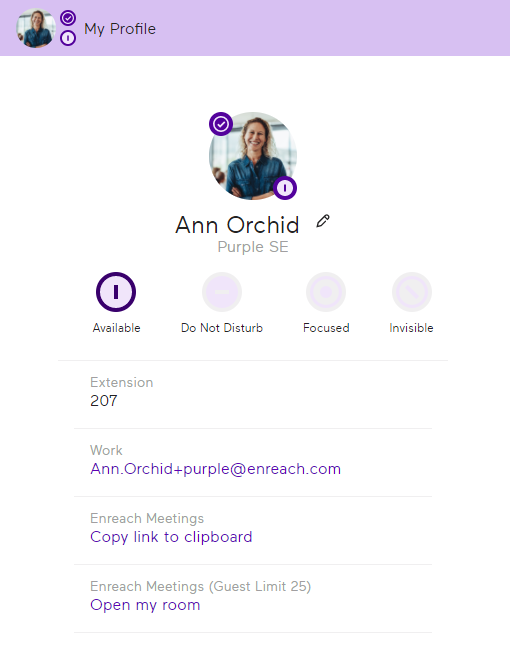 Your meeting room opens.
The maximum number of participants is shown in brackets above the Open my room option.

For more information, see the Enreach Meetings documentation.
To copy the link to your Enreach Meetings room
The link to your meeting room has been copied to the clipboard. You can insert the link via Ctrl+V or Right click | Paste into a chat or an email.or
1 Click on .
.Your contact list opens.Your contact profile opens.The link to your meeting room has been copied to the clipboard. You can insert the link via Ctrl+V or Right click | Paste into a chat or an email. For more information, see the Enreach Meetings documentation.