1.4.2 Menus
The menu bar is located at the top of the SwyxFax Client window. The information below provides a more detailed description of the available menus:

Menu | Explanation |
|---|---|
File | Here you have the option of printing a document or a fax folder, as well as exporting fax documents. This menu is used to exit SwyxFax Client. |
Edit | Here you can highlight all of the elements in the displayed list at once. |
View | The commands in this menu can be used to display or hide the toolbar and status bar for the SwyxFax Client window and to configure the view of the fax Preview window (e.g., rotating, zooming and browsing). |
Fax | This is used to send a Quickfax or call up the Address Book. |
Document | This is used to manage fax documents (e.g., view, mark as read, delete, pause, reactivate, and forward). |
Tools | Here you can change the basic settings of SwyxFax Client (e.g., information on send options, senders, transmission confirmation of SwyxFax Server, directories, etc.). |
Help | Here you will find Online Help, a link to the Swyx homepage and version information for SwyxFax Client. |
The File Menu
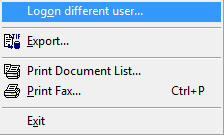
The commands in this menu are used for
 exporting documents,printing fax documents or fax folders, andexiting SwyxFax Client.
Menu Command | Explanation |
|---|---|
Log on other user | Start the log-on dialog to enter your log-on information. |
Export... | Here you can export a fax document from your Inbox to a file. A variety of graphics formats are available for this purpose, see 1.10.5 Exporting a Fax. |
Print Document List... | A folder selection window will appear. Select the fax folder to be printed. |
Print… | Prints the selected fax document. |
Exit | Exits SwyxFax Client. |
The Edit Menu
Here you can highlight all of the elements in the displayed list at once. This function makes it possible, for example, to delete highlighted elements simultaneously.

The View Menu
With the commands in this menu, you can change the following views:
the SwyxFax Client window (symbols and status bars),the preview window (rotating, zooming and browsing)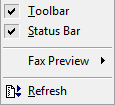
Menu Command | Explanation |
|---|---|
Toolbar | All icons in the toolbar are shown/hidden, see 1.4.2.1 Toolbar. |
Status Bar | The status bar, located at the bottom of the window, contains additional information and can be displayed or hidden, see 1.4.2.2 Status Bar. |
Fax Preview | Additional menu entries are shown. These menu entries help you to change the preview of the fax document, e.g., rotating, zooming, optimizing the page, and browsing through the document, see 1.11 The Preview Window. |
Refresh | This updates the screen view immediately. You can set the refresh time under "Tools | Options | SwyxFax Server". |
The Fax Menu
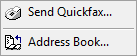
This is used to send a Quickfax or call up the Address Book.
Menu Command | Explanation |
|---|---|
Send Quickfax... | Here you can send a Quickfax. The "Send Fax" window will open. |
Address Book... | This calls up the Address Book. Here you can manage your address entries and add new addresses. |
The Document Menu
The commands in this menu allow you to manage the fax documents within a fax folder.
Specifically, they allow you to
display a fax document and mark it as read,receive detailed information regarding the fax,delete a fax document,pause the sending process for a fax and resume it,resend (reactivate) a fax document, andforward a fax document.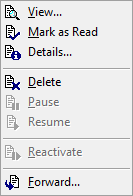
Menu Command | Explanation |
|---|---|
View... | The highlighted fax document is displayed using the fax viewer. |
Marking as Read | The highlighted fax document is marked as read. |
Details... | This command displays detailed information regarding the fax, such as the time at which it was sent or received, the recipient's number or the resolution. |
Remove | The highlighted fax is deleted. |
Pause | The send process for the highlighted document is paused. |
Resume | The paused send process for the highlighted document is resumed. |
Reactivate | A fax which could not be sent is sent again. |
Forward... | A new cover page can be attached to the fax document and the document forwarded to another number. |
Tools menu
In this menu, you are forwarded to the "Options" page. Here you can use different tabs to define the basic properties of SwyxFax Client:
general default settings for the send dialog ("Send Fax" window),sender (number, sender information),send options (priority, letterhead, number of redials),transmission report (transmission confirmation, error messages),Miscellaneous (switch confirmations on/off, incoming fax notification, archiving fax documents).
The Help Menu
Here you will find
Online Help,a link to the Swyx homepage, anddetailed information about this version of SwyxFax Client.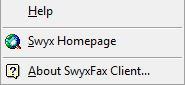
.
Menu Command | Explanation |
|---|---|
Help | Open the Online Help. |
Swyx Homepage | This calls the Swyx homepage. |
About SwyxFax Client... | Shows version and copyright information. |