2.4.2.1 Properties of a Script
The properties of a script can be displayed by
clicking on in the toolbar.
clicking on
in the toolbar.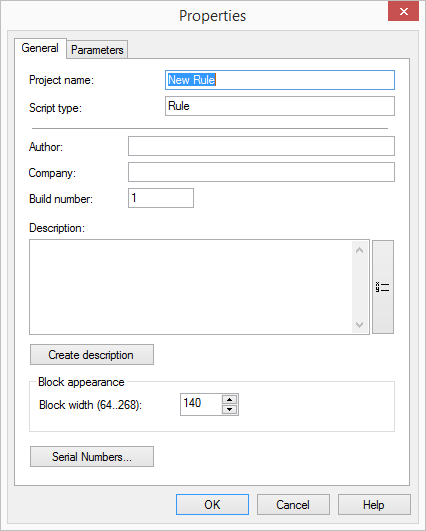
The "General" Tab
In addition to the name of the rule or action, the following information is also displayed:
 Project NameScript typeAuthor CompanyVersion numberDescriptionBlock Width
To save a modified script, see 2.4.4 Saving a Script or 2.4.5 Saving as a Draft.
The type of script cannot be changed here. It indicates whether this script is for a rule or an action.
Enter the author and the name of the company.
The build number cannot be changed. The build number is increased every time the script is loaded.
Furthermore, you can define the width of the blocks here (64-268). This will allow you to legibly display longer block names. The width defined here is valid for all blocks of this script.
Brief information describing the function of the script must be entered under "Description". By clicking on "Create description", a description will be generated by the Graphical Script Editor. This text will appear later in the Call Routing Manager in the window "Description: This Rule shall apply…".
If the description remains empty, the script cannot be saved.
The  button is used to open the "Variables and System Functions" window. These functions will help you to make decisions based on current information or to forward current information (2.5 Variables and System Functions).
button is used to open the "Variables and System Functions" window. These functions will help you to make decisions based on current information or to forward current information (2.5 Variables and System Functions).Serial Number Restrictions
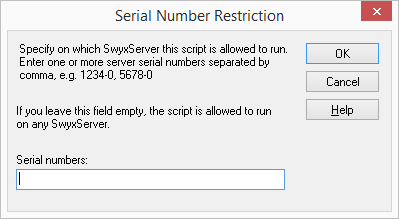
You can indicate whether a rule script should be subject to certain restrictions. To protect a script, you can define which SwyxServer this script should be run on.
You can obtain more information on this subject from your Swyx sales representative.
This is how you restrict the runability of a script
1 Open the properties of a script under "File | Script properties..." or click on .
. .
.How does SwyxServer verify a serial number restriction?
To execute a users set of rules, SwyxServer loads the user's file callrouting.vbs, which was generated by Call Routing Manager/Use of the Graphical Script Editor.. This file connects the individual rules and actions via additional vbx files. If a callrouting.vbs or one of the connected vbs files contains a serial number restriction, SwyxServer will check whether its own serial number is contained in the list of numbers saved in the script file. If it isn't, the script will be rejected. The serial number check will be carried out for each of the scripts to be loades, regardless of whether the script is directly loaded as a callrouting.vbs or indirectly through a connection to the callrouting.vbs. If the file doesn't contain any serial number restrictions, the file can be run on any SwyxServer.
If a user has a restricted script in his rule book and if this script is not permitted for the SwyxServer, this users entire set of rules will not be executed. Instead, the standard script of the SwyxServer will be executed, i.e. the call will be connected to the original destination.
The "Parameters" Tab
The entry of parameters on the "Parameter" tab enables you to use and define GSE rules and actions in the Call Routing Manager without having to change them using the use of the Graphical Script Editor..
For example, this makes it possible for the administrator to create GSE rules or action and to provide them to the user without the user having to have authorization to use the Graphical Script Editor.