2.6.1 The General Structure of a Block
All blocks have the same structure elements regardless of their block type. These structure elements will be described in more detail in the following.

Element | Explanation |
|---|---|
 | The "Input" contact surface This is occupied by the symbol, which also characterizes the block type (here e.g. "Situations "). |
 | Name of the block You can define the name yourself on the "General" tab. The parameters used are entered here by default. |
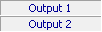 | Description of the Outputs You can define this name yourself on the "Links" tab. Line break for formatting |
 | "Output" contact surface(s) The connections to the next block start from here. Line break for formatting |
 | Block type (here e.g. "Situations check") The block type is shown here. The block types will be described in more detail in this chapter. You can also hide the display of the block type via  . . |
Name of the block
You will find the name of the block in the top line. If the block is activated during processing, the name will be highlighted in blue. If it is deactivated, the background is pale blue. In the default setting, each block has a name, which corresponds to the block type or the set parameters contained in this block. You can give each block an individual, identifying name.
This is how you rename a block
 Select "Edit | General…" from the toolbar orGo to the menu bar and click directly on
  .
.Input
In the upper left corner of the block, you will see the "Input" contact surface. It contains the symbol of the block type. This surface serves as an entry point for the connection lines between the blocks. Each block has exactly one input.
Outputs
On the right-hand side of the block you will find the contact surfaces for the outputs. These are also occupied by symbols or abbreviations. You can define a description for each output. These are shown in the block. The number of outputs depends on the block type. Each block has at least one output. You can connect these outputs to the input of the block which follows.
To find out more about creating a connection, see This is how you connect two blocks.
Block Type
You will see the block type in the bottom line. An overview of the different block types can be found in 2.6.2 Overview.
Comments Mark
As soon as you have entered a comment on the "General" tab, a mark  will appear in the upper right corner. If you move the mouse over the comments mark, the QuickInfo containing the text for this mark will open.
will appear in the upper right corner. If you move the mouse over the comments mark, the QuickInfo containing the text for this mark will open.