2.6.5.1 Connect To

The "Transfer" action transfers the call to the destination number. A time limit (Timeout) limits the time period in which a connection establishment it is tried.
You have the option of playing an announcement (e.g. "your call will be connected") in the handset instead of a ringing (idle tone).
If configured, the caller must also confirm the call acceptance with a DTMF input.
Furthermore, in this block you can permit an interruption by a DTMF entry made by the caller. This takes place in the same was as in the block "Play announcement".
Alternatively, you can activate the "Use calling party number" checkbox if the call is routed to another internal subscriber and is to be handled according to the rules of this subscriber. In this case, your own set of rules will be ended.
The action is terminated
 after successful transfer (call has been accepted),if the destination telephone number is busy,by interrupting the connection (e.g. the caller goes on hook)After the transfer to the destination script (if this option has been activated)after the timeout has expired if the call could not be put through.if the user to whom the call is to be put through is logged out.
Deliver to Mobile
Using the "Deliver to Mobile" function, an incoming call intended for the user or their group can be signaled in parallel and delivered to the user's mobile phone. The call can be actively accepted or ignored by the user (e.g. for on-call services).
For more information on this function, see: help.enreach.com/controlcenter/14.25/web/Swyx/en-US/index.html#context/help/_deliverToMobile_$
This is how you define the parameters for Connect To
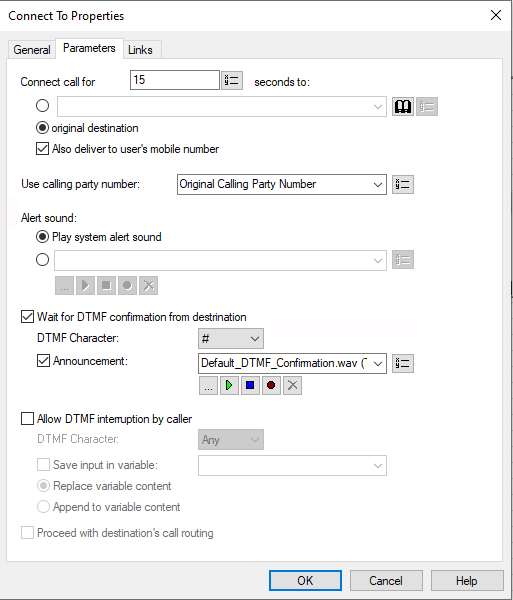
Only external phone numbers can be used. If a connection subject to costs is set up while forwarding, then these costs will be charged to you.
After transferring with the value "0" for timeout, the call is no longer available for further processing.
 From the dropdown list select a file.Browse your hard drive by clicking on
  .
.When searching, you can also choose a file in MP3 format. Upon selection, the MP3 file will automatically be converted into the WAV format and saved in the database on the SwyxServer. The converted files are therefore available for use later. During the conversion process, the Info dialog "Please wait, the file is being converted into WAV format" will open.
Click on , to listen to the selected file. Click on
  to stop playing the file.To record a new announcement, click on
  : You will now be prompted to enter a file name. The "Start Recording" window will appear. Click on "Start" to begin recording the announcement. Stop recording by clicking on
  .To delete the selected file, click on
  .
.The WAV files, which the administrator has made available to all users, have the extension "(Template)" in the file name. These templates cannot be deleted.
the content of the variable is to be replaced, orthey are appended to the content of the variable.Links
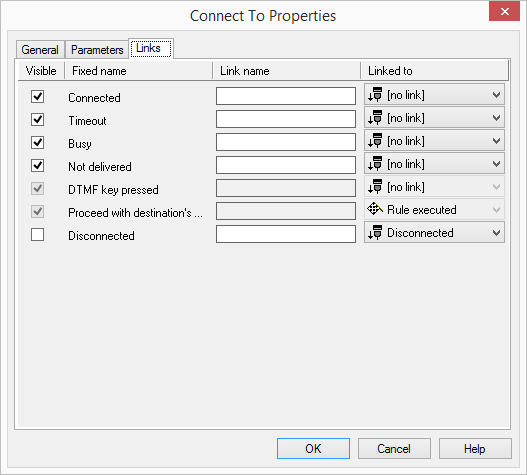
On this tab you will find all outputs associated with this block. The outputs are described as follows:
Output | Explanation |
|---|---|
Connected | This exit is chosen if the call was successfully connected to the destination number. |
Timeout | This exit is chosen if the call could not be connected to the destination number within the Timeout period. |
Busy | This exit is chosen if the destination telephone number is busy. |
Not Delivered | This exit is chosen if the call cannot be connected because the destination subscriber is logged off. |
DTMF key pressed | This exit is selected if a DTMF character is detected during the announcement. |
Proceed with destination's... | This exit is chosen if the call is transferred to the destination. It will further processed according to the destination script. Your own call handling will be ended. |
Disconnected | This exit is chosen if the call was disconnected during the connection process. |
In the first column "Visible", you can define whether each output should be shown in the script window.
The "Visible" column is only used to define the visibility of the links in the script window. This setting helps to maintain the clarity of the script. You cannot remove outputs, i.e. the connections must be kept, otherwise an error will occur in the script.
The second column "Default" contains the default name of the output. This provides information about events during the execution of a block so that additional appropriate connections can be created. This fixed name cannot be changed. You can assign your own identifying names to the various contact surfaces in the column "Link name". This name will later appear in the block in the grid interface.
In the last column "Linked to" you see which block input this output is connected to. Here you have the option of selecting a link from a select list, which contains all available blocks.