2.6.5.10 Send email
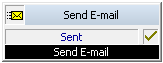
The "Send E-mail" block can be used to send an e-mail, which can contain information concerning the call and the recorded message.
You can individually design a subject line and the e-mail text for the e-mail. For both of these entries, it is possible to use system functions for specific call information which is automatically replaced with the appropriate value by SwyxServer when the e-mail is sent.
If you would like to send an e-mail, which contains the recorded message, you must first record a message. The e-mail will be sent even if no message exists.
Recorded messages which are shorter than 3 seconds will not be sent, i.e. - as in the case of a non-recorded message - only an e-mail with the data concerning the call (date, time and number) will be sent.
Under "Properties", all three tabs "General", "Parameters" and "Connections" tabs are available for this block.
This is how you define the parameters for the action "Send E-mail"

7 If the user is to receive a notification that a voicemail is available for him/her, check the "Signal availability of voice message " box and select the desired user to be informed via the  icon.
icon.
icon.Links
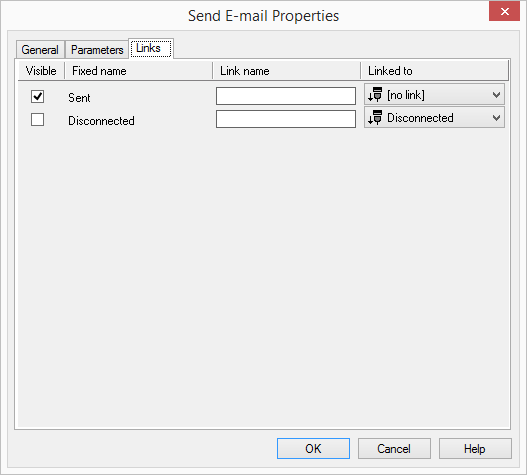
On this tab you will find all outputs associated with this block. The outputs are described as follows:
Output | Explanation |
|---|---|
Sent | This exit is chosen if an e-mail was sent. |
Disconnected | This exit is selected if the call is disconnected. |
In the first column "Visible", you can define whether each output should be shown in the script window.
The "Visible" column is only used to define the visibility of the links in the script window. This setting helps to maintain the clarity of the script. You cannot remove outputs, i.e. the connections must be kept, otherwise an error will occur in the script.
The second column "Default" contains the default name of the output. This provides information about events during the execution of a block so that additional appropriate connections can be created. This fixed name cannot be changed. You can assign your own identifying names to the various contact surfaces in the column "Link name". This name will later appear in the block in the grid interface.
In the last column "Linked to" you see which block input this output is connected to. Here you have the option of selecting a link from a select list, which contains all available blocks.