2.6.6.1 Set Variable
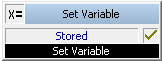
You can define a new variable here by assigning it a name and a value. A variable, which has already been defined, can be assigned a new value here.
Furthermore, you can also call those Visual Basic Script functions and sub-programs, which you have defined in the "Start rule" block. Initiate this by going to the window "Set Variable" and leaving the variable name empty. Then enter the expression "=<Name of sub-program()>" in the "Variable value" field. If you would like to use the return value of this function in script, add the appropriate variable name.
You can also create a list of sub-programs here in the same way you would create a variable list. All sub-programs listed here will be executed sequentially.
See also 2.7 The Use of a Visual Basic Script.
The action will be terminated
 if the variable has been saved, orthe call has been terminated.
Under "Properties", all three tabs "General", "Parameters" and "Connections" tabs are available for this block.
This is how you set a variable
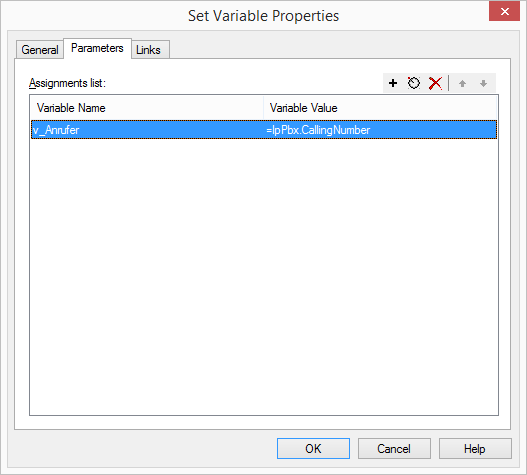
2  Click on.
Click on.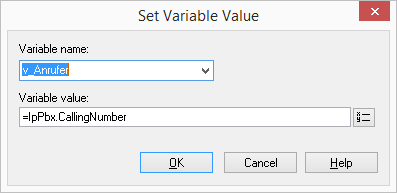
 entering a new name (A-Z, a-z, 0-9 and _ are allowed, however the first character must be a letter) orselect a name from the drop-down list.
The variable value can be a string. If the entry in this field begins with an equal sign, all characters which follow will have a numeric value or be interpreted as an expression. In doing so, you can enter existing variables and system functions. Click on  and select the variable from the list which appears.
and select the variable from the list which appears.Links
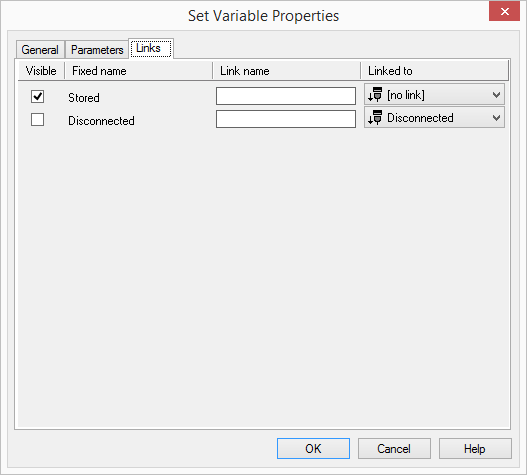
On this tab you will find all outputs associated with this block. The outputs are described as follows:
Output | Explanation |
|---|---|
Stored | This exit is chosen if the variables were saved. |
Disconnected | This exit is selected, if the call is interrupted. |
In the first column "Visible", you can define whether each output should be shown in the script window.
The "Visible" column is only used to define the visibility of the links in the script window. This setting helps to maintain the clarity of the script. You cannot remove outputs, i.e. the connections must be kept, otherwise an error will occur in the script.
The second column "Default" contains the default name of the output. This provides information about events during the execution of a block so that additional appropriate connections can be created. This fixed name cannot be changed. You can assign your own identifying names to the various contact surfaces in the column "Link name". This name will later appear in the block in the grid interface.
In the last column "Linked to" you see which block input this output is connected to. Here you have the option of selecting a link from a select list, which contains all available blocks.