2.6.7.5 Call in Queue
This block adds the current call to the queue and processes it.
A call positioned in the queue, will - if it is his turn - be delivered to a free agent. In case this agent should'nt accept this call and further agents should be busy, the call will be added again to the queue, namely on the top.
This action will be terminated, if
 the call was processed using the queue and successfully forwarded to the consultant, orthere is no queue with the corresponding ID, orthe queue was deleted by another script while the call was still in the queue, orthe call has been terminated, orthe maximum number of calls in the queue has been reached, orthe call cannot be added, because the dialled destination does not hava a consultant with the status "logged on", orthe Timeout was reached before the call could be processed within the queue orthe queue Timeout was reached, i.e. the call was in the queue too long. The call will be deleted from the queue.
Under "Properties", all three tabs "General", "Parameters" and "Connections" tabs are available for this block.
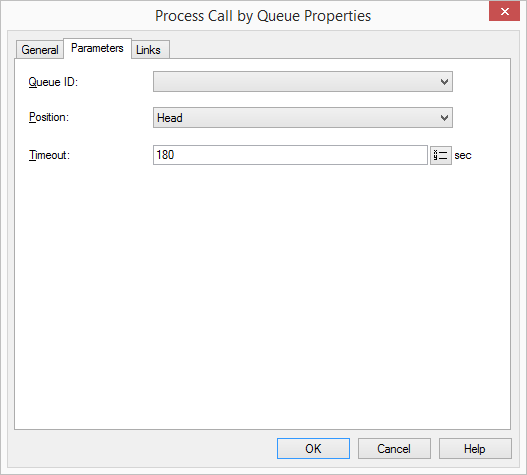
This is how you define the parameters for "Call in Queue"
Links
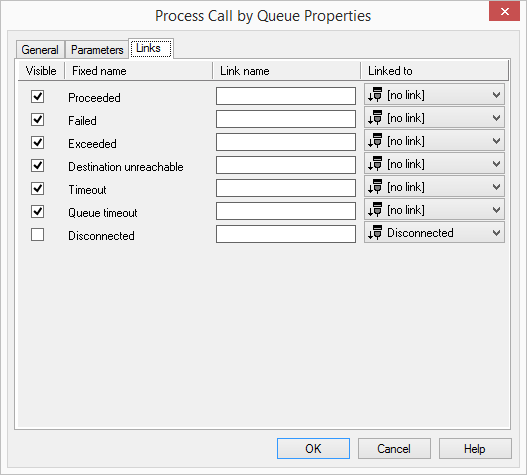
On this tab you will find all outputs associated with this block. The outputs are described as follows:
Output | Explanation |
|---|---|
Executed | This exit is chosen if the call is forwarded to the destination consultant via the queue. |
Error | This exit is chosen if no queue with the corresponding ID exists or the queue was deleted by another script, while the call was in the queue. |
Exceeded | This exit is chosen if the call cannot be added because the current number of calls exceeds the maximum number of calls in the queue. |
Destination unreachable | This exit is chosen if the call cannot be added because the dialled destination has no consultant with the status "logged on". |
Timeout | This exit is chosen if the Timeout was reached. The current call will be deleted from the queue. |
Queue Timeout | This exit is chosen if the current call has been in the queue too long. The queue Timeout was reached. The call will be deleted from the queue. |
Disconnected | This exit is selected if the call is disconnected. |
In the first column "Visible", you can define whether each output should be shown in the script window.
The "Visible" column is only used to define the visibility of the links in the script window. This setting helps to maintain the clarity of the script. You cannot remove outputs, i.e. the connections must be kept, otherwise an error will occur in the script.
The second column "Default" contains the default name of the output. This provides information about events during the execution of a block so that additional appropriate connections can be created. This fixed name cannot be changed. You can assign your own identifying names to the various contact surfaces in the column "Link name". This name will later appear in the block in the grid interface.
In the last column "Linked to" you see which block input this output is connected to. Here you have the option of selecting a link from a select list, which contains all available blocks.