11.2.1.3 The "RemoteConnector" Tab
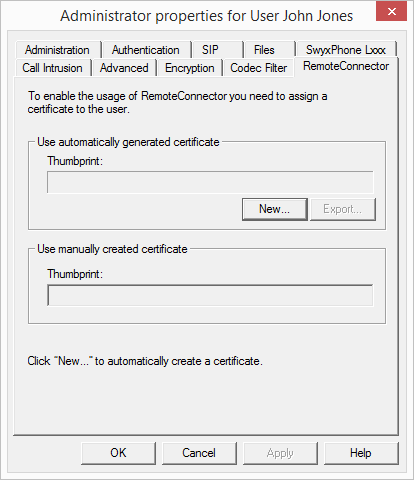
This tab is used to generate the digital SwyxRemoteConnector client certificate for the user, or to assign an existing one. Via SwyxRemoteConnector, a user outside the local (LAN) or virtual private network (VPN) can log in to SwyxServer.

During a new installation or update to SwyxWare V. 13.20 you can have client certificates created automatically for all users, see 6 Swyx Connectivity Setup Tool

If a "404" error occurs during the connection between client and server, although all required services are running, the valid client certificate may be missing on the user's terminal device. Re-assign the client certificate to the user or generate a new one.
"Use automatically generated certificate"
In automatic mode, the master and server certificates are generated by SwyxWare and stored in the SwyxWare database.
On the current tab, you can also have SwyxWare generate the client certificate and assign it to the user.
The certificate is automatically transferred to the user's computer on the company network after assignment.
For the generation of the client certificate, if necessary, have the password ready with which you protected the root certificate during the SwyxWareconfiguration.
In SwyxON, the password for the generation of the Client certificate is not required.
How to assign an automatically generated certificate to a user
The client certificate stored only applies for the computer and the Windows user account under which is it stored in the Windows certificate storage.
"Use manually generated certificate"
This mode is not supported.