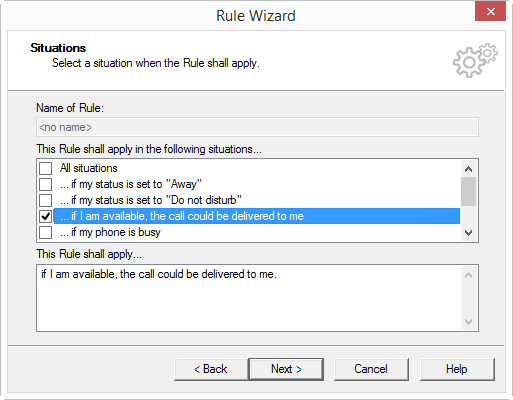
2.4.1 Situations
When you call the Rule Wizard ( This is how you create a new user rule or This is how you modify a user rule) the Rule Wizard will open. If you click on "Next>" you will move on to the "Situations" window. Here you describe under what circumstances the rule should be applied. All allowed situations, i.e. the system situations, are listed under "This Rule shall apply under the following situations…". A rule can be applied to different situations. Situations which have already been selected are shown with a check mark.
You can select from the following situations:
 All situationsThe subscriber is available and the call could be put throughThe line is busy, which means that the subscriber is currently making a call and all lines are busy or the option "Disable secondary call" is activated.The status of the subscriber is set to "Away" within the rich presence information.The status of the subscriber is set to "Do not disturb" within the rich presence information.The subscriber is "absent" according to the calendar.The subscriber is "busy" according to the calendar.The subscriber is not logged on to the SwyxServer.
Please note that the "absent" and "booked" information according to the calendar is only updated by Microsoft 365 (Exchange Online) or by Outlook to the Exchange Server at certain intervals. It is only available for rule processing after the update has taken place. These settings can be changed in Outlook under "Tools | Options | Settings | Calendar options... | Free/Busy Options" Remember that a very small value will lead to network overload.
A calendar query is also possible with Lotus/IBM/HCL Notes. The prerequisite is the installation of the Lotus/IBM/HCL Notes SDK. In contrast to Microsoft Outlook, Lotus/IBM/HCL Notes does not allow qualification with regard to local appointments and absences. The "Freetime" query in Lotus/IBM/HCL Notes therefore interprets all-day events as "absent" and all other appointments are treated as "booked".
The information concerning whether a user is "absent" or "busy" is only required when the Exchange Server starts the first call handling. If this query appears several times during call handling, the value of the first query will be applied again.
This is how you define the situations for a rule