2.6.1.1 Properties of a Block
Each block has properties, which you can configure. Depending on the type of block, there is a varying number of tabs.
This is how you call the properties of a block
 Select "General…" for example.Select "Edit | General…" from the toolbar orGo to the toolbar and directly select the tab you want, e.g.
  .
.General
The "General" tab contains the general settings for the highlighted block.
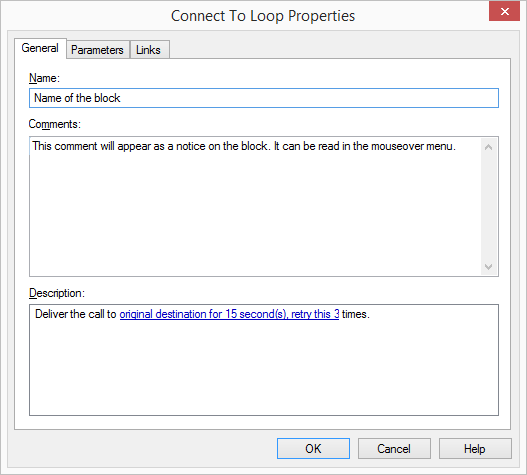
These include
 Name of the block. This appears in the top line of the block. Furthermorea space for your own comments, which will appear later when the mouse pointer touches the comments mark, anda text, which describes the parameters defined on the following tab. This text is created automatically when entering the parameters and it cannot be changed. The parameters are blue and underlined and can be selected by directly clicking on them.
Parameter
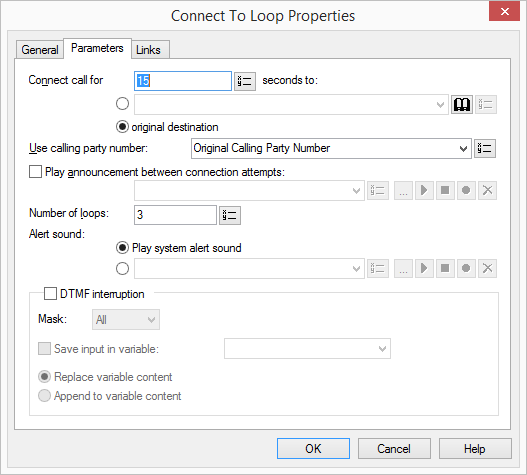
This tab contains the parameters to be defined for this block type. If the selection of a parameter requires additional, detailed information, then this single parameter is underlined. When it is selected, a new window will be opened immediately in which the necessary details are querried.
Example:
In the block "Connect To Loop", you activate the entry of another number and click for the selection of the destination number, e.g., on  .
.
. The following window appears "Phonebook". Here you can select a number.
Links
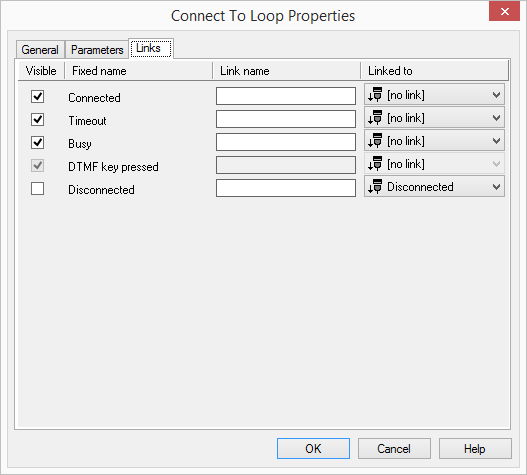
On this tab you will find all outputs associated with this block.
In the first column "Visible", you can define whether each output of the block should be shown in the script window.
The "Visible" column is only used to define the visibility of the links in the script window. This setting helps to maintain the clarity of the script. You cannot remove outputs, i.e. the connections must be kept, otherwise an error will occur in the script.
The second column "Default" contains the default name of the output. This provides information about events during the execution of a block so that additional appropriate connections can be created. This fixed name cannot be changed.
You can assign your own identifying names to the various contact surfaces in the column "Link name". This name will later appear in the block in the script window.
In the last column "Linked to" you see which block input this output is connected to. Here you have the option of selecting a link from a select list, which contains all available block inputs.