2.6.7.2 Set Queue Attributes
The block "Set Queue Attributes" can be used to set or change the different attributes of the queue. The block can be used, for example, to define the music on hold that every caller hears, to define the maximum queue size (number of calls) and to configure additional announcements.
If you make changes to the queue parameters, restart the Queue Manager service. This is the only way to ensure that the changes take effect.
The following attributes can be defined:
 Queue ID
Every queue has an unique ID. This is a system-wide identification number of a queue.
Called partySwyx User or group, which answers the call.
Maximum length of the queueMaximum number of calls, which can be added to the queue.
Average Call DurationThis attribute defines the average call duration for calls in the queue. It is used for determining the estimated wait time. The value of this parameter can only be set hypothetically.
The value of the field "Average call duration" should be entered in seconds. This value will be converted before the voice output in minutes, rounded and shown.
Queue TimeoutThis value indicates how long a call (in seconds) can stay in the queue. If this value is exceeded, the call will be removed from the queue.
Music on HoldThe music on hold is a file in WAV format, which is played in a loop for all callers in the queue. This music on hold can be interrupted by individual announcements, such as the announcement concerning the position of the call in the queue and / or the announcement concerning the estimated wait.
This information is read from variables via the block "Call Queue Attributes" and makes it possible to give the current value from loop to loop.
Announcement before and after the position informationWith the help of this attribute you can select the announcement, which is to played before and after the position information. The position information itself can played via an announcement file using the "Play String" block.
Announcements before and after the time to wait informationWith the help of this attribute you can select the announcement, which is to played before and after the time to wait information. The time to wait information itself can played via an announcement file using the "Play String" block.
The announcements defined here can, for example, be played in the sequence music on hold, position information (if configured) and announcement concerning the time to wait.
TimeBetweenWavThis attribute defines the intervals (in seconds) in which the announcements should be played.
This action will be terminated, if
the attribute of the queue was successfully set, orthe attributes of the queue could not be successfully set due to an error (e.g. if the given queue ID does not exist), orthe call has been terminated.Under "Properties", all three tabs "General", "Parameters" and "Connections" tabs are available for this block.
This is how you define the parameters for "Set Queue Attributes"
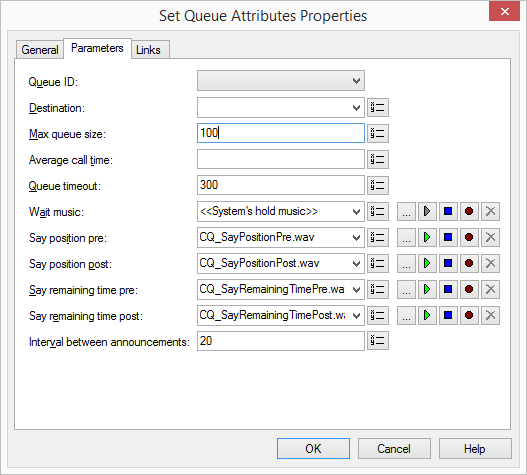
The value of the field "Average call duration" should be entered in seconds. This value will be converted before the voice output in minutes, rounded and shown.
 From the dropdown list select a file.Browse your hard drive by clicking on
  .
.When searching, you can also choose a file in MP3 format. Upon selection, the MP3 file will automatically be converted into the WAV format and saved in the database on the SwyxServer. The converted files are therefore available for use later. During the conversion process, the Info dialog "Please wait, the file is being converted into WAV format" will open.
Click on , to listen to the selected file. Click on
  to stop playing the file.To record a new announcement, click on
  : You will now be prompted to enter a file name. The "Start Recording" window will appear. Click on "Start" to begin recording the announcement. Stop recording by clicking on .To delete the selected file, click on
  .
.The WAV files, which the administrator has made available to all users, have the extension "(Template)" in the file name. These templates cannot be deleted.
Links
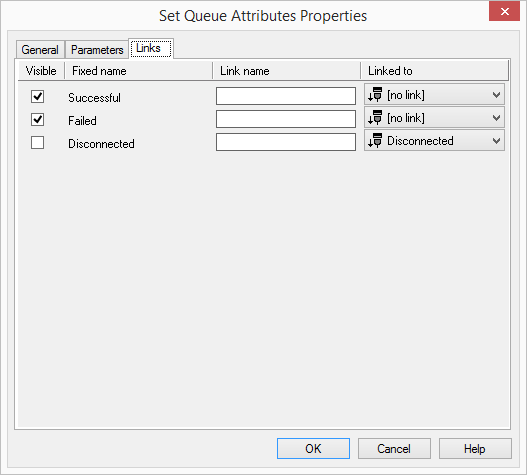
On this tab you will find all outputs associated with this block. The outputs are described as follows:
Output | Explanation |
|---|---|
Successful | This exit is chosen if the queue attributes were successfully saved. |
Error | This exit is chosen if the queue attributes could not be successfully set, because e.g. the queue ID does not exist or the wrong parameter was set. |
Disconnected | This exit is selected if the call is disconnected. |
In the first column "Visible", you can define whether each output should be shown in the script window.
The "Visible" column is only used to define the visibility of the links in the script window. This setting helps to maintain the clarity of the script. You cannot remove outputs, i.e. the connections must be kept, otherwise an error will occur in the script.
The second column "Default" contains the default name of the output. This provides information about events during the execution of a block so that additional appropriate connections can be created. This fixed name cannot be changed. You can assign your own identifying names to the various contact surfaces in the column "Link name". This name will later appear in the block in the grid interface.
In the last column "Linked to" you see which block input this output is connected to. Here you have the option of selecting a link from a select list, which contains all available blocks.