9.1 Incoming call
When a call comes in for you or is forwarded to you, an "Incoming Call" pop-up appears, containing the caller's contact information. During the ringing, you have the following options:
 accept the callreject the calltransfer the call directly to another personforward the call directly to voicemailignore the call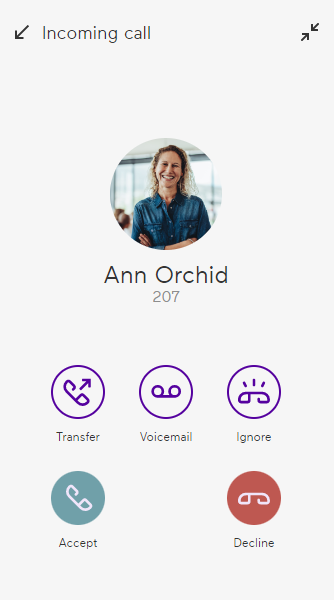
To answer a call
1 When you receive an incoming call, click the  icon in the pop-up window.
icon in the pop-up window. You can now make a call to your conversation partner via the integrated input and output devices or via a headset.
To reject a call
1 When you receive an incoming call, click the  icon in the pop-up window.
icon in the pop-up window.The call attempt is immediately interrupted.To transfer a call
1 Click on the  symbol in the pop-up window on an incoming call to transfer the call directly to another party.
symbol in the pop-up window on an incoming call to transfer the call directly to another party.3 Click on  in the row of the desired contact.
in the row of the desired contact. The call is immediately forwarded to the selected contact.To forward a call to the voicemail
1 When you receive an incoming call, click the  icon in the pop-up window.
icon in the pop-up window.The call is immediately forwarded to the voicemail.For the call forwarding settings, see 5.2.2 Forwarding Settings.
To ignore a call
This option allows you to reject a call without the caller noticing.
1 When you receive an incoming call, click the  icon in the pop-up window.
icon in the pop-up window.The call no longer rings on your desktop app. It is not interrupted but shown minimised in the navigation bar at the bottom left until you accept or reject it or the caller hangs up.
If you are logged in to other devices besides Enreach Contact Desktop, the call will ring on those device.
Incoming calls from Outlook or Google Contacts
With Microsoft and Google integration, incoming calls from one of your Outlook or Google contacts are displayed with names.
For further information see also 5.1.3 Integrations Settings.