5.5.3 Distribute agents to queues
Additional agents can be assigned to queues with a high workload, see To assign agents to a queue.
Experienced agents or agents with a low workload can be entrusted with additional queues, To assign one or more queues to an agent.
To assign agents to a queue
 The overview of the agents in the queue appears.
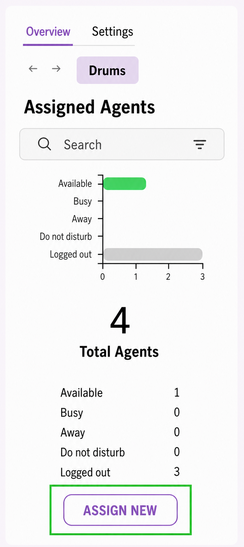 The list of agents assigned to this queue appears.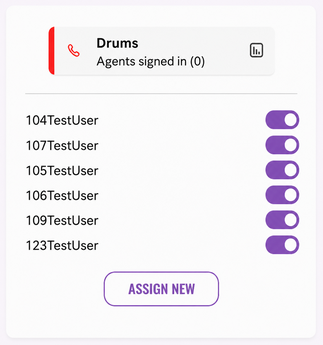
4 Optional: If you want to replace agents, click on  in the line of an assigned agent to remove this agent from the queue,
or go to the step (7).
in the line of an assigned agent to remove this agent from the queue,or go to the step (7).
The Assign agents dialog appears.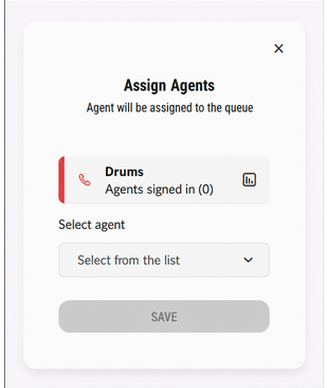 The search field and the list of agents appear.
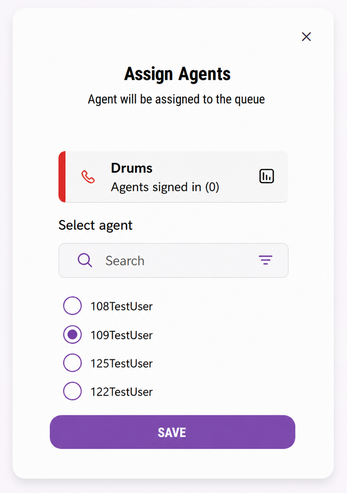 The confirmation dialog appears.The new agent is assigned to the queue.
To assign one or more queues to an agent
The overview of all agents appears.The Assigned Queues dialog appears.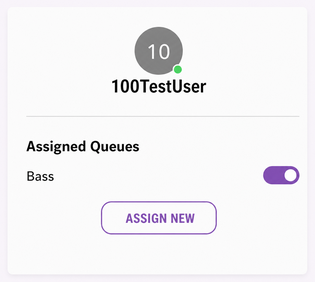
4 Optional: If you want to replace agents, click on  in the line of an assigned agent to remove this agent from the queue,
or go to the step (7).
in the line of an assigned agent to remove this agent from the queue,or go to the step (7).
The Assign Queues dialog appears.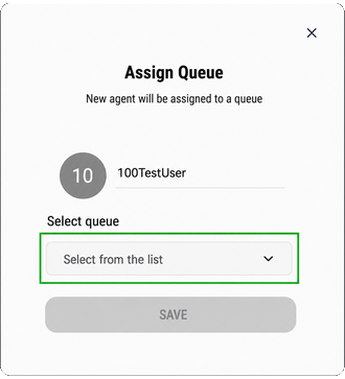 The search field and the list of agents appear.
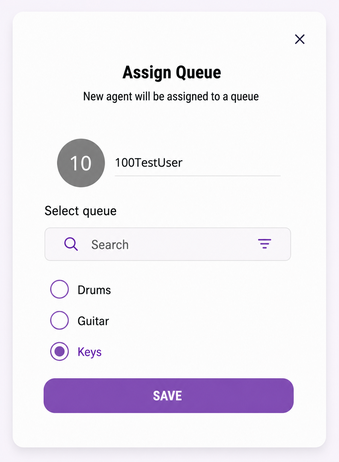 The confirmation dialog appears.