11.2.10 The "Properties…" Dialog:
The "Rights" Tab
The "Rights" Tab
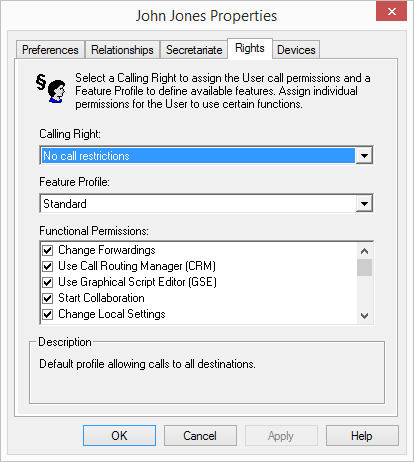
A Swyx user may have different permissions; for one thing, outgoing calls may be restricted, and for another, the use of certain features may be prohibited.
Call Permission
There are different levels for call restriction, which the administrator can variably organize, e. g.
e. g.
internal calls
only calls within Swyx
 local calls
only calls without prefix
long distance callscalls within the country; without international prefix
international callsall calls with international prefix
A user's Calling Right is defined by the assigned Call Permissions profile. You can define various call restrictions e.g. only internal calls, local calls or national calls. In addition, the administrator can also block specific numbers or prefixes (e.g. chargeable prefix numbers).
See 9.1 Call Permissions.
Available Functions
There are various SwyxIt! Classic functions which the administrator can allow or disable for users. These functions can be assigned via function authorizations or a specific administrator profile.
Feature Profile
The feature profile defines the selection of features which are available in principle for the user. Here, users can be granted permissions to use advanced Swyx features.
To change the feature profile, choose a different profile from the drop-down list. In a standard Swyx installation, only one profile is available—"Standard"—which provides users with access to all features. Swyx for Data Center and SwyxON offer various profiles. See 9.2 Function profile.
If a different feature profile is assigned to a user, this change appears in the change log.
See 7.7 Change log.
Available Functions
In the field "Functional Permissions:", the administrator can define which functions are available to the user by activating corresponding checkboxes. The individual highlighted function is explained in the "Description" field.
If individual functions are not included in the feature profile, they cannot be activated in the lower field either. In this case, please choose a different feature profile.
Change forwardingsA user is allowed to modify the call forwardings (Unconditional, No reply, Busy), i. e. the user can either set a number, to which the call is to be forwarded or determine that all calls will be forwarded directly to the Voice Box.
If the "Forwardings" option is deactivated, the user cannot change any of the forwarding options (immediate, delayed, if busy). The Call Routing Manager and Graphical Script Editor are then also deactivated.
Use Call Routing Manager (CRM)With the help of the Rule assistants, the user himself can create a set of rules for call handling here. See also https://help.enreach.com/cpe/latest.version/Client/Swyx/en-US/index.html#context/help/import_export_phonebook_$.
If a user does not have permission to start the Call Routing Manager directly, then the scripts created with the Call Routing Manager will still be available to the user. He can still change his forwardings (Unconditional, No Reply, Busy). Graphical Script Editor is likewise deactivated.
This feature is included in the " SwyxBCR " option for Swyx for Data Center and " SwyxON. " In Swyx, this feature is already included in the basic version.
Use Graphical Script Editor (GSE)In addition to the Rule assistants of the Call Routing Manager, a graphical representation of the rules is offered here. Graphical Script Editor is part of the option SwyxECR package.
If scripts that the administrator has use of the Graphical Script Editor. created for a user are to be applied, the function profile must allow the use of use of the Graphical Script Editor.. In order to prevent the user from changing script, the administrator needs to deactivate the "Graphical Script Editor" check box in the user configuration.
Start CollaborationThe Collaboration function allows the user to share his or her desktop during a telephone conversation via SwyxIt! Classic. The share takes place on the SwyxIt! Classic user interface, in the menu "Functions | Collaboration". When the desktop is shared, the user can allow the conversation partner to access his or her computer.
The Collaboration function can only be executed between SwyxIt! Classic users. Collaboration with a SwyxPhone is not possible. Both subscribers must have SwyxIt! Meeting or TeamViewer installed on their computers and must have the right to share applications. A user can only permit one application share at a time.
The collaboration function with TeamViewer only works when the SwyxIt! Classic users are logged in to the same SwyxServer.
The collaboration function with TeamViewer only works when the SwyxIt! Classic users are logged in to the same SwyxServer.
Change Local SettingsIn the local configuration, users can define on which server and under which user name they log on, which email client the "Voice Box" button opens, and which voice compression is used.
The local settings for the voice terminals are made on another tab.
Local configuration cannot be performed in Swyx Administration. For this reason it is possible to change the local configuration directly on the user's computer when SwyxIt! Classic is logged off. The altered local settings become effective as soon as SwyxIt! Classic logs in again.
Change User ProfileThis is where you can configure all settings that directly affect the user and that the user will see on all telephony clients once they have logged in to the SwyxServer, such as name and speed dial keys, ringtones, etc. These settings can also be configured in Swyx Administration under User Settings.
Send/receive instant messagesYou specify here whether the user may send and receive instant messages with the help of SwyxIt! Messenger.
Change own user pictureIf this option is activated, the user is allowed to exchange his/her own user picture.
When saving and processing personal data, observe the respective applicable legal data protection regulations.
Upload own user pictureIf this option is activated, the user is allowed to upload his/her own individually chosen user picture. This option can only be activated when the option "Change own user picture" is activated.
Load SkinThe user is allowed to select a different skin.
If this option is activated, the user can change his skin, i.e. he can select another skin for the existing skins. This option is also activated when "Edit the Skin" is activated.
Edit SkinThe user is allowed to use and edit own skins with the Skin Editor.
See also https://help.enreach.com/cpe/latest.version/Client/Swyx/en-US/index.html#context/help/skins_$.
Record Conversation in SwyxIt! ClassicThe user can record calls that he makes with SwyxIt! Classic.
This functionality is included in the option pack SwyxRecord.
Change number and numbers of the linesIf this option is activated, the user can determine the number of available lines and assign certain incoming calls to the desired lines.
Change settings for the encryptionIf this option is activated, the user can change the settings for the encryption. See 11.2.1.9 The "Encryption" Tab.
CTI+ with external phone via phone numberWith SwyxCTI+, the user can control an external telephone via its phone number See 25.2.1 Configure a CTI pairing to the number of an external phone.
Functions on a SwyxPhone
If the user uses a SwyxPhone as a terminal, then only the authorizations for "User Profile" and "Forwardings" take effect.
User ProfileThis affects the following functions:
Disable Secondary Call,
Incognito,
Adjust Ringing,
Call Signaling,
Setting the function keys, speed dials and line keys
The setting options for voice and ringing volume remain the same.
Call ForwardingsThe user can no longer change his or her settings for the forwarding options (unconditional, if busy and no reply) or for Do not Disturb (the settings for unconditional forwarding are applied).