7.5 Remote inquiry
Remote Inquiry allows you to listen to your voice messages from any telephone. When you are called on your Swyx number, you identify yourself to Swyx with your PIN and only then you can listen to, repeat, or delete the new voice messages and afterwards all existing voice messages. In addition, you can change the destination of the Call Forwarding Unconditional or record a new announcement.
To access Remote Inquiry, you must have configured your Call Forwarding to be redirected to the Voice Box (immediately or with a delay). During the Voice Box Announcement you can then switch to your Remote Inquiry menu with the help of the asterisk button (*), if this option has been appropriately configured (7.4 Configuring the Standard Voice Box).
The number of voice messages available for remote inquiry is limited to the last hundred voice messages.
A differentiation is made between
 the standard Remote Inquiry
This remote inquiry is the standard remote inquiry defined for a user. It offers the functions described here.
a special Remote InquiryYou can specify this remote inquiry individually in the Call Routing Manager, provided you have obtained the relevant permissions from your administrator. With a special password, you can e.g. use a different remote inquiry menu. The standard Remote Inquiry is not changed in this case. See also help.enreach.com/cpe/latest.version/CRM/Swyx/en-US/index.html#context/help/standard_remote_inquiry_$.
You will receive a PIN (Personal Identification Number) from your administrator. But you can also configure this yourself.
To define the parameters for Standard Remote Inquiry
or
 A pop-up window appears where you can configure the settings.
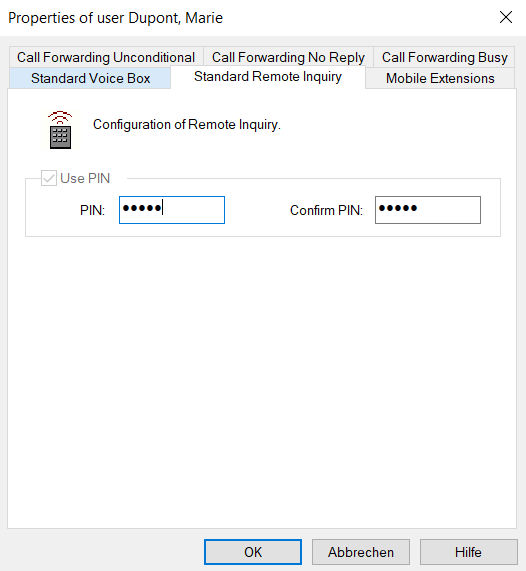 With the help of your information, it is now possible for SwyxServer to query the mail server during a remote enquiry and to provide you with the voice messages.
To configure Call Forwarding for the Remote Inquiry
To listen to voice messages remotely, you must configure your Call Forwarding in such a way that you reach the Remote Inquiry menu with a telephone call:
If you have no other Call Routing Manager rules activated, configure Call Forwarding No Reply in such a way that calls are forwarded to your Standard Voice Box. During the welcome announcement you can use the *- key to reach the Remote Inquiry menu.If you have activated Call Routing Manager rules, make sure that the option of Remote Inquiry is provided. See also help.enreach.com/cpe/latest.version/CRM/Swyx/en-US/index.html#context/help/standard_remote_inquiry_$.If you have not activated any Call Routing Manager rules and then change the Unconditional Call Forwarding (e.g. to another number instead to the Standard Voice Box), you can no longer use the remote inquiry option.
To listen to your voice messages remotely
 a configured Remote Inquiry, see To define the parameters for Standard Remote Inquiry andan appropriately configured call forwarding, see To configure Call Forwarding for the Remote Inquiry.The call is picked up and you hear the welcome announcement of your Voice Box.You will hear the welcome announcement of the Remote Inquiry and will be asked to enter your PIN.
If you have not activated any Call Routing Manager rules and then change the Unconditional Call Forwarding (e.g. to another number instead to the Standard Voice Box), you can no longer use the remote inquiry option.
Date receivedTimeCaller’s number (if available)Name of the caller (if, in the case of internal calls, a WAV file for the caller is available, To record your name and welcome message for the Voice Box on)the recorded voice message.Button | Effect |
|---|---|
Connects to the caller (if possible) | |
Back to the beginning of the voice message | |
Forward to the end of the voice message | |
10 seconds backward | |
Stop/Start Output | |
10 seconds forward | |
Switches to the previous voice message | |
Switches to the next voice message | |
Main Menu | |
Switch to the next information (Date, Time, Number, voice message Content) | |
Help |
Button | Effect |
|---|---|
Connects to the caller (if possible) | |
Repeats the current voice message | |
Deletes the current voice message, confirm with | |
Answer per voice message (only possible for internal use) | |
Mark all voice messages as played | |
Forward to an internal number | |
Switches to the previous voice message | |
Switches to the next voice message | |
Main Menu | |
Help |
Button | Effect |
|---|---|
End Remote Inquiry (=Hook on) | |
Inquiry of all voice messages (most recent first) | |
Configuration of the Forwarding Unconditional | |
Record note | |
Change Voice Box announcement | |
Deletes all voice messages, confirm with | |
Help |
If you end Remote Inquiry in the main menu with ‘0’, other actions of the Call Routing Manager can still be applied. See help.enreach.com/cpe/latest.version/CRM/Swyx/en-US/index.html#context/help/CRM_actions_$.