9.2 Options during a call
During an active call, you have the following options.

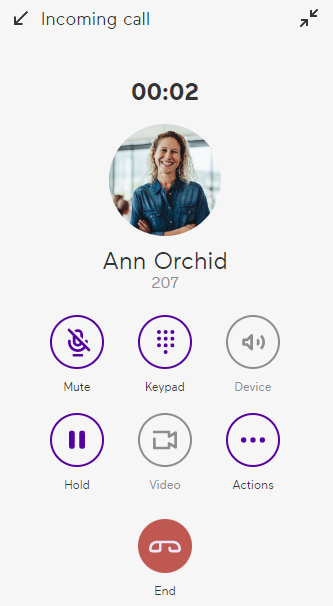
To put a call on hold
1 During an active call, click on  to put the call on hold.
to put the call on hold. The call is put on hold and the other party hears music on hold.
2 Click  to continue the call.
to continue the call.See also chapter To manage multiple parallel and minimized calls.
To mute your microphone
1 During an active call, click on  to mute your microphone.
to mute your microphone.Your contact can no longer hear you.2 Click  to unmute the microphone.
to unmute the microphone.To use the dialer
1 During an active call, click on  to use the dialer.
to use the dialer.The keypad appears and you can use it, for example, as a selection menu.To start a video call
During an active call with one of your colleagues, you have the option to start a video call with your conversation partner.
1 During an active call, click  .
.
.Your video is visible to you and your conversation partner.
You may need to allow access to your camera to share your video.
To see the video of your conversation partner, they must also activate video transmission.
The options during a video call are displayed: Mute - you can mute your microphoneKeypad - you can call up the keypadHold - You can put the video call on hold. Your profile picture is displayedStop video transmission
3 Click  to stop the video transmission.
to stop the video transmission.The video transmission stops and the call continues as an audio call. During a video call, you can only start or accept a second call via another terminal.
To change your device during a call
During an active call you have the possibility to change the device you are using for the call.
1 During an active call, click on  .
.
.Your available devices will be displayed. The selected device rings. You can accept and continue the call on this device. To transfer a call without consultation (blind transfer)
1 During an active call, click  .
.
.A pop-up window opens with the following options:New callTransferConsult4 Click on  in the row of the desired contact.
in the row of the desired contact. The call is immediately forwarded to the selected contact.To forward a call with consultation
1 During an active call, click .
.A pop-up window opens with the following options:New callTransferConsult4 Click on in the row of the desired contact.
in the row of the desired contact. You will be connected to the subscriber.5 To transfer the call, click .
.A pop-up window opens with the following options:MergeCompleteThe call is transferred to the desired contact and you are removed from the call.